Windows + Linux Dual Boot: ReviOS + LMDE
Dual-boot ReviOS (debloated Windows 11) and LMDE with shared NTFS data partitions and cross-OS sync workflows.
This guide walks you through setting up a dual-boot system with ReviOS (debloated Windows 11) as your daily driver and LMDE (Linux Mint Debian Edition) as a focused deep-work environment. It assumes you have already decided to debloat Windows (see Tiny 11 vs Atlas OS vs ReviOS for context on ReviOS) and have a working Windows install ready to extend with a Linux partition. If this is your first step toward Linux and you eventually want to make the full switch, the companion Windows to Linux Guide documents the Linux side of the same workflows in depth.
The Golden Rule
Windows always installs first. Linux always installs second.
Windows Boot Manager is territorial — install it after Linux and it silently overwrites GRUB, killing your boot menu. Following this order avoids most dual-boot headaches before they happen.
Sequence: Backup → BIOS check → Clean Windows+ReviOS install → Create data partitions → Shrink for Linux → Install LMDE → Verify GRUB → Mount shared partitions → Post-install hardening.
Legal Responsibility Disclaimer
Using ReviOS to debloat Windows involves modifying your operating system in ways that Microsoft does not officially support. Debloated builds may also use modified ISOs obtained from sources other than official Microsoft channels. This guide documents the technical process for educational and informational purposes only. You are solely responsible for ensuring your use complies with Microsoft's licensing terms and applicable laws in your jurisdiction. The author of this guide accepts no liability for any consequences resulting from your use of this information.
Is LMDE Actually the Right Linux Choice Here?
Short answer: yes, it holds up well — but it’s worth knowing what you traded for it.
LMDE tracks Debian stable underneath (LMDE 6 = Debian 12; LMDE 7 “Gigi”, released October 2025, is based on Debian 13 “Trixie” with the 6.12 LTS kernel and receives support into mid-2028), not Ubuntu. That’s the whole point of the project — Mint’s team built it explicitly as a “spare tire” in case Ubuntu ever became unworkable for them, and the side effect is a base that’s notably more conservative and predictable than Ubuntu-derived distros. For a “no surprises, daily-driver” machine, that’s close to the best-case scenario among mainstream distros.
The honest trade-offs versus regular Ubuntu-based Linux Mint Cinnamon:
- Installer friction — LMDE needs manual partitioning; regular Mint has an automatic “Install alongside Windows” button.
- Slightly older kernel/driver baseline — Debian stable moves slower than Ubuntu’s HWE stack. On very new laptop hardware, this occasionally means needing Debian backports.
- Smaller package set out of the box than Ubuntu’s repos, though Flatpak (pre-configured) closes most of that gap.
If you hit a specific hardware-support wall, regular Mint Cinnamon is the fallback with the least friction (same desktop, same philosophy, easier installer, newer kernel). But assuming your hardware isn’t bleeding-edge, stick with LMDE — it’s arguably the most stability-focused mainstream option.
Your hardware specifically (ThinkPad L14 Gen 2, i5-1135G7 (11th gen Tiger Lake), 16GB RAM, MediaTek MT7921e WiFi): the i5-1135G7 is fully supported by LMDE’s kernel — no concerns there. The MT7921e is handled by the in-kernel mt76 driver (PCIe support has been mainlined since kernel 5.12, and LMDE 7 ships kernel 6.12, well past that bar). The required firmware blobs live in the firmware-mediatek package — and unlike Ubuntu-based Mint, LMDE ships with the non-free-firmware repo enabled by default, so WiFi should genuinely just work out of the box.
If WiFi doesn’t work after install:
- Connect via Ethernet or a phone hotspot once, then run
sudo apt update && sudo apt install firmware-mediatekand reboot. - If that package isn’t found, check
cat /etc/apt/sources.list.d/official-package-repository.listfor anon-free-firmwarecomponent. - Run
sudo dmesg | grep -i mt7921to confirm the firmware loaded cleanly.
Windows 11 Consumer 25H2 (Build 26200.8655) — Why This Edition?
This guide standardizes on Windows 11 Consumer 25H2 with ReviOS applied on top (the tested build is 26200.8655, the June 2026 cumulative). Consumer 25H2 gets monthly features, security patches, and drivers first, keeps full Microsoft Store support, and carries a normal retail/OEM license — while ReviOS strips the bloatware and AI components (Recall, Click to Do, Copilot) and blocks telemetry at the driver level. The result is a clean, focused Windows install that keeps the full Consumer feature set. See Tiny 11 vs Atlas OS vs ReviOS for the alternatives.
Where Each Piece of Software Actually Lives
Two real environments, used deliberately differently — not duplicates of each other.
Windows (ReviOS + Revision Tool) — the broad, multi-app daily driver: Office 2024 (Excel/PowerPoint/Word), Stata 17, R 4.x + RStudio, VS Code, Zed, Claude Code CLI, Git + GitHub CLI + GitHub Desktop, Google Drive, Dropbox, MEGAsync, OneDrive (kept deliberately), Discord, Zoom Workplace, KDE Connect, Everything search, qBittorrent, VLC, TeXstudio + MiKTeX, Firefox, Brave, Avro Keyboard (Bangla input), AB Download Manager, AIMP, Grammarly, marktext, Miniforge3 (conda Python), OpenVPN, PDFgear, QuickLook, Strawberry Perl, Node.js, Android platform-tools, Eyes Guard.
LMDE — a deliberately narrow deep-work station: browser, agentic terminal, VS Code, Python, Stata (Linux build), TeXstudio, VLC, Okular, Blanket for white noise, plus MEGAsync, Dropbox, and KDE Connect for cross-device sync. Windows is where the communication-heavy day happens; LMDE is where you go to focus — code, run stats, write, read. Beyond the day-to-day it also gives you a real desktop environment to administer (apt, systemd, GRUB, partitioning) and a fully independent bootable fallback if Windows ever breaks. Keep the LMDE install list short on purpose: every app you add pulls it toward being “Windows again, but worse.”
Relocating Dropbox/Mega Off C: (the Right Way)
Both apps support moving their local sync folder to another drive, but it has to be done through the app itself — never drag the folder in File Explorer. A manual move breaks the app’s tracking, and it’ll either panic thinking the folder vanished or kick off a full re-download.
- Dropbox: system tray icon → Preferences → Sync tab → Dropbox folder location → Move → select your WORK or PERSONAL partition.
- Mega (MEGAsync): tray icon → Settings → Folders → change the local sync target the same way.
What this fixes: any folder you keep available offline (fully downloaded, not online-only) now lives on a partition LMDE already mounts via fstab — it shows up as a normal, fully readable file from the Linux side.
What this doesn’t fix: online-only files are still unreadable from LMDE — that’s an NTFS reparse-point limitation tied to Windows’ proprietary cloud-filter driver, and has nothing to do with which drive the folder sits on. Any folder you want functional from both OSes needs to be set to available-offline in Windows, not online-only.
Live sync note: Windows’ Dropbox/Mega clients only run when Windows is running — they can’t be “in the background” while you’re booted into LMDE. The fix is to keep the native LMDE clients installed too and point each one at the same physical folder on the shared partition — different mount paths per OS (D:\Dropbox in Windows, /media/work/Dropbox in LMDE), same underlying files.
Quick Install Commands
TeXstudio on LMDE needs a LaTeX engine installed separately — on Debian/LMDE that’s TeX Live, not MiKTeX:
sudo apt install texlive-full(texlive-full is ~6-7 GB; start with texlive-latex-extra if you’d rather build incrementally.)
Python on LMDE — uv, not venv. Debian (12 and up, including LMDE 7’s Debian 13 base) marks the system Python as “externally managed” (PEP 668), which blocks plain pip install system-wide. uv sidesteps this entirely:
curl -LsSf https://astral.sh/uv/install.sh | shThen uv run script.py or uv add <package> handles isolation automatically.
Dropbox (LMDE):
sudo apt install nemo-dropbox
cd ~ && wget -O - "https://www.dropbox.com/download?plat=lnx.x86_64" | tar xzf -
~/.dropbox-dist/dropboxd
nemo-dropbox gives right-click/status-icon integration for Cinnamon’s file manager.
MEGAsync (LMDE) — add the official repo. LMDE 7 is Debian 13 (“trixie”), so use the Debian_13 repo (verified live; swap to Debian_12 only on LMDE 6):
curl -fsSL https://mega.nz/linux/repo/Debian_13/Release.key | sudo gpg --dearmor -o /etc/apt/keyrings/mega.nz.gpg
echo "deb [arch=amd64,arm64 signed-by=/etc/apt/keyrings/mega.nz.gpg] https://mega.nz/linux/repo/Debian_13/ ./" | sudo tee /etc/apt/sources.list.d/mega.nz.list
sudo apt update
sudo apt install megasync nemo-megasync
KDE Connect (LMDE):
sudo apt install kdeconnectSince you’re running it on both Windows and LMDE, your phone will see two separate “device” entries (one per OS) — that’s normal, just pair both once.
Your Exact Partition Plan (500GB SSD)
| # | Partition | Size | Filesystem | Mount/Use |
|---|---|---|---|---|
| 1 | EFI System | ~300 MB | FAT32 | Auto-created by Windows installer, shared by both OSes |
| 2 | Recovery | ~1 GB | NTFS | Auto-created by Windows installer |
| 3 | Windows (C:) | 160 GB | NTFS | ReviOS system + apps |
| 4 | Work files | 100 GB | NTFS | Shared data — accessible from both OSes |
| 5 | Personal files | 80 GB | NTFS | Shared data — accessible from both OSes |
| 6 | LMDE root (/) | 96 GB | ext4 | Linux system + apps |
| 7 | LMDE swap | 4 GB | swap (partition) | Backstop swap — zram does the heavy lifting (see Stage 6) |
| 8 | LMDE home (/home) | ~58 GB | ext4 | Linux configs/cache (your actual files live in #4/#5, not here) |
Total ≈ 499.3 GB. Swap partition sized assuming 16GB RAM — adjust if your RAM differs.
Why NTFS for shared partitions (not exFAT): exFAT has no journaling or error correction, and Linux Mint’s own forums repeatedly flag it as prone to corruption on internal drives — fine for a USB stick, risky for a fixed internal partition you write to daily from two OSes. NTFS with the kernel driver Linux now ships is far more battle-tested for this use case.
Sizing rationale:
- Windows (160GB): comfortable — Microsoft’s bare minimum is 64GB; 120GB+ is the realistic floor for this many apps.
- WORK/PERSONAL (100GB/80GB): now also hosting Dropbox/Mega “available offline” folders — keep an eye on usage as cloud-synced footprint grows.
- LMDE root (96GB): generous — full Linux desktop runs 15-20GB; with
texlive-full(~6-7GB) and Stata, plenty of room. - LMDE home (58GB): buffer for configs/cache, rarely approaches this size.
Estimated Time
Budget 4.5—7.5 hours of active hands-on time total. Best split across two sessions if this is your first manual-partition Linux install.
| Stage | Active time | Notes |
|---|---|---|
| Backup + BIOS check | 30—60 min | Mostly automated copying |
| Copy both ISOs onto Ventoy USB | 10—20 min | Drag-and-drop only |
| Build ReviOS ISO via AME Wizard | 30—60 min | ~10—25 min downloading base ISO, ~15—20 min injection |
| Windows install + OOBE setup | 45—60 min | Partitioning, file copy, first-boot account |
| Windows Update full pass | 30—90 min | Most variable step |
| Driver/stability check | 15—30 min | Confirm WiFi, audio, GPU |
| Create WORK/PERSONAL partitions, disable Fast Startup | 15—20 min | Disk Management |
| LMDE install (manual partitioning) | 45—75 min | Slowest single step |
| Verify/fix GRUB | 5—20 min | 5 min if clean, up to 20 if os-prober issue shows up |
| fstab mount setup for shared partitions | 15—20 min | Finding UUIDs, editing fstab |
| Post-install hardening | 30—60 min | Timeshift, apt upgrade, zram setup |
Practical split: Day 1 = Windows + ReviOS (~2.5—4 hrs). Day 2 = LMDE + linking (~2—3.5 hrs).
Ventoy Version Check (do this first)
If your Ventoy USB was set up more than a couple of weeks ago, update it before relying on it. Ventoy 1.1.14 (June 24, 2026) shipped a critical fix for a Secure Boot certificate transition (UEFI CA 2023); the latest stable is 1.1.17 (July 24, 2026), which further optimized the Secure Boot flow. Older Ventoy versions can fail to boot entirely on systems with recently-patched UEFI firmware, with reports affecting Dell, HP, and Lenovo machines specifically. Symptoms range from the boot menu not appearing at all to a black screen or silent reboot after selecting an ISO.
Note: Ventoy uses a new UEFI Secure Boot CA starting with 1.1.14, so you need to enroll the new key the first time you boot a 1.1.14+ build with Secure Boot enabled.
Run Ventoy2Disk.exe → Update before you plug the drive into the target laptop, not after something fails to boot.
Stage 0: Before You Touch Anything
- Full backup — disk image + separate copies of anything irreplaceable. Partitioning mistakes don’t have an undo button.
- Confirm BIOS/UEFI is in UEFI mode with GPT, not legacy/MBR (check via
msinfo32→ BIOS Mode, or in firmware setup). - Stay plugged into AC power for the entire process — a battery die mid-partition-write is one of the more common ways people end up with a corrupted table.
Stage 1: Clean Windows Install with ReviOS Baked In
ReviOS supports two install paths. For a true clean install, use ISO Injection — it bakes the optimizations into the Windows ISO itself, so you install once instead of installing stock Windows then running a playbook after.
- Download AME Wizard and the latest ReviOS Playbook from revi.cc/download.
- Open AME Wizard → load the Playbook → choose ISO Injection (Windows 11 ISOs only).
- AME Wizard pulls a fresh official Windows 11 ISO, then walks you through Configure Options to pick which tweaks/removals to bake in.
- Copy the resulting custom ISO onto your Ventoy USB (alongside the LMDE ISO from Stage 3).
- Boot the USB, select the ReviOS ISO from Ventoy’s menu. In the partitioning screen, create only the 160GB Windows partition and leave the rest of the disk as unallocated space.
- Complete setup. Because it’s ISO-injected, BitLocker and most hardware-requirement checks are already bypassed — confirm this later in Stage 2.
- Run Windows Update fully, reboot a couple of times, and confirm network/audio/GPU drivers are stable.
Known ReviOS quirk: bypassing TPM/hardware checks at install time can occasionally cause a future major feature update (not regular patches) to refuse to install via Windows Update later on — you’d reapply via AME Wizard if it ever comes up.
Alternative Path: Stock Windows + Revision Tool (what this guide’s test machine actually runs)
ISO injection isn’t the only route. The Revision team also ships a standalone Revision Tool that applies (and re-applies, and un-applies) the ReviOS playbook on an already-installed stock Windows — no custom ISO, no reinstall. This is what the machine this guide was tested on actually runs: a stock Windows 11 Consumer 25H2 install (build 26200.8655), debloated post-install with Revision Tool 2.10.0.
What that looked like in practice:
- Clean-install stock Windows 11 Consumer from an official ISO (all partition planning below is identical).
- Update Windows and drivers fully first — then debloat. Applying updates after stripping components is where things break.
- Run the Revision Tool, pick the playbook options you want, apply, reboot.
- Verify what changed before relying on it:
Get-Service wuauserv, WaaSMedicSvc— update services set to stopped/manual (no automatic updates; a manual Settings → Windows Update scan still works when YOU want one)Get-MpComputerStatus— if this errors orWinDefendis missing, your tool choice removed Defender outright rather than pausing it. Decide deliberately whether that’s acceptable; see the software inventory’s maintenance routine for the frozen-update ritual.
The dual-boot mechanics (partitioning, GRUB, fstab) are identical either way.
Stage 2: Create the Data Partitions (in Windows)
Now that Windows is installed and stable:
- Open Disk Management (right-click Start → Disk Management).
- You should see your 160GB C: drive, the small EFI/Recovery partitions, and ~338GB of unallocated space.
- Right-click the unallocated space → New Simple Volume → 100GB → format NTFS → label it
WORK→ assign a drive letter (e.g.D:). - Repeat: New Simple Volume → 80GB → format NTFS → label it
PERSONAL→ assign a drive letter (e.g.E:). - Note the actual drive letters Windows assigned — they can vary if other USB drives are connected. You’ll need these exact letters later.
- You’ll have ~158GB of unallocated space left — leave this alone, it’s for LMDE.
Three settings to fix now, all common causes of dual-boot corruption:
- Disable Fast Startup: Control Panel → Power Options → “Choose what the power buttons do” → uncheck “Turn on fast startup.” Fast Startup hibernates the system drive in a way that can corrupt NTFS if Linux mounts it while it’s in that state.
- Disable hibernation entirely: open an elevated PowerShell and run
powercfg /hibernate off. Manually hibernating Windows, then booting into LMDE and writing to the NTFS partitions, then resuming Windows causes the same class of corruption as Fast Startup, just triggered manually. - Confirm BitLocker/Device Encryption is off: Settings → Privacy & Security → Device Encryption. Should already be off thanks to ISO injection, but some OEM devices silently re-enable it after a Microsoft account sign-in.
Reboot Windows once to confirm everything’s still stable.
Stage 3: Install LMDE Alongside Windows
LMDE (Debian Edition) is not the same installer as regular Ubuntu-based Mint — there’s no auto “Install alongside Windows” button. It uses Calamares with manual (GParted-style) partitioning:
-
Download the LMDE ISO from linuxmint.com, verify the SHA256 checksum, copy it onto the same Ventoy USB alongside the ReviOS ISO.
-
Boot the USB explicitly in UEFI mode — pick it from a one-time boot menu (F12/F10/Esc depending on your laptop) — then select the LMDE ISO from Ventoy’s menu.
-
In the installer, choose “Something Else” (manual partitioning) — not “Erase disk.”
-
In the partitioning screen, working in your ~158GB of remaining unallocated space:
- Create a new partition, ext4, and explicitly set the mount point to
/in the dropdown. Size: 96GB. - Create a second partition, filesystem type
linuxswap(Calamares lists it as “swap”), sized 4GB. - Create a third partition, ext4, mount point
/home, sized ~58GB. - Do not create a new EFI partition — the installer should detect and reuse the existing one.
- Create a new partition, ext4, and explicitly set the mount point to
-
Set “Device for boot loader installation” to the physical disk itself (e.g.
/dev/nvme0n1), not a specific partition — this ensures GRUB installs into the existing EFI partition correctly. Never pick/dev/sda*— on this machine that’s the USB stick, and a bootloader installed there means the PC only boots with the stick plugged in.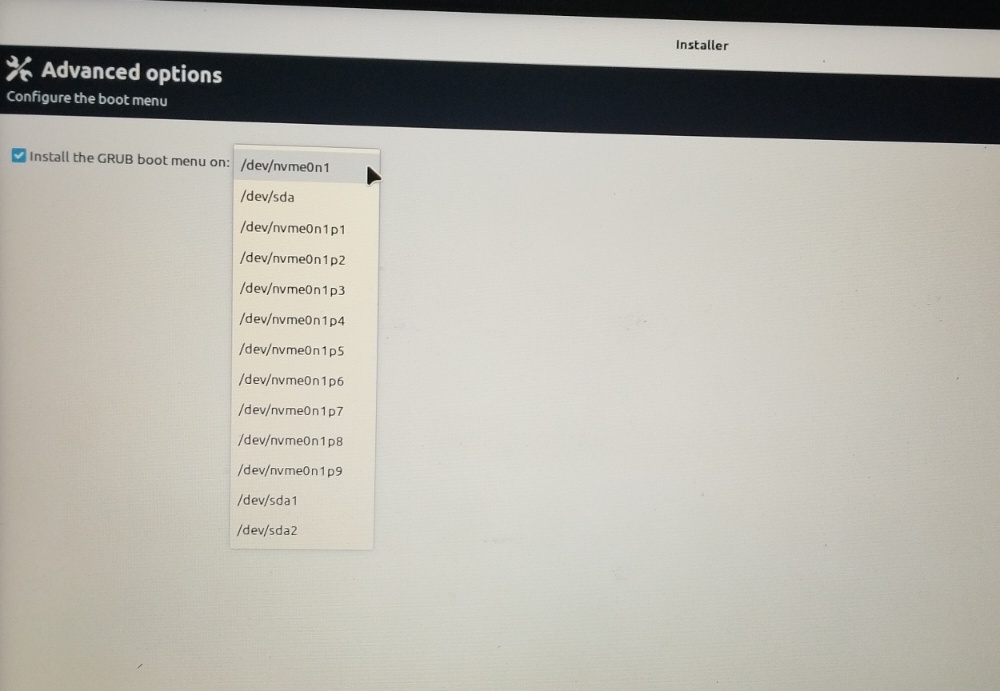
-
Finish, reboot, remove the USB.
If the installer complains the EFI partition is missing boot/esp flags (“The EFI partition is not bootable. Please edit the partition flags.”), fix it right on that screen:
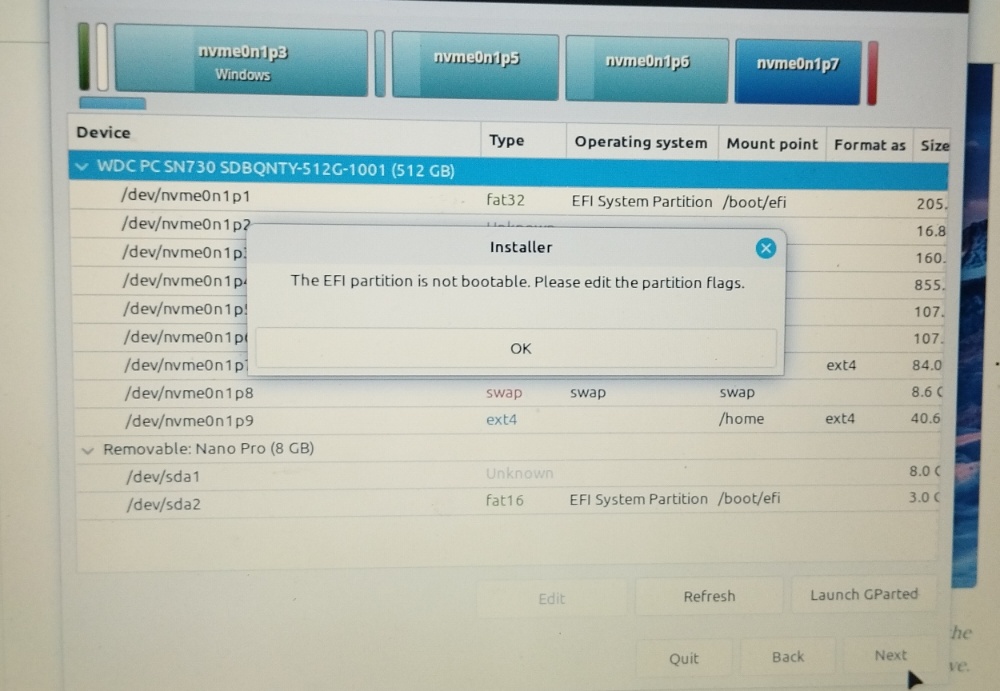
- Click OK to close the error, then highlight the existing FAT32 EFI partition (
/dev/nvme0n1p1on this machine). - Click Edit → set the action to Keep (never format — formatting deletes the Windows bootloader) → confirm the mount point is
/boot/efi→ tick thebootandespflags. - If no flag editor appears, click Launch GParted, right-click the EFI partition → Manage Flags → tick
bootandesp, close, then hit Refresh back in the installer and re-check the mount point.
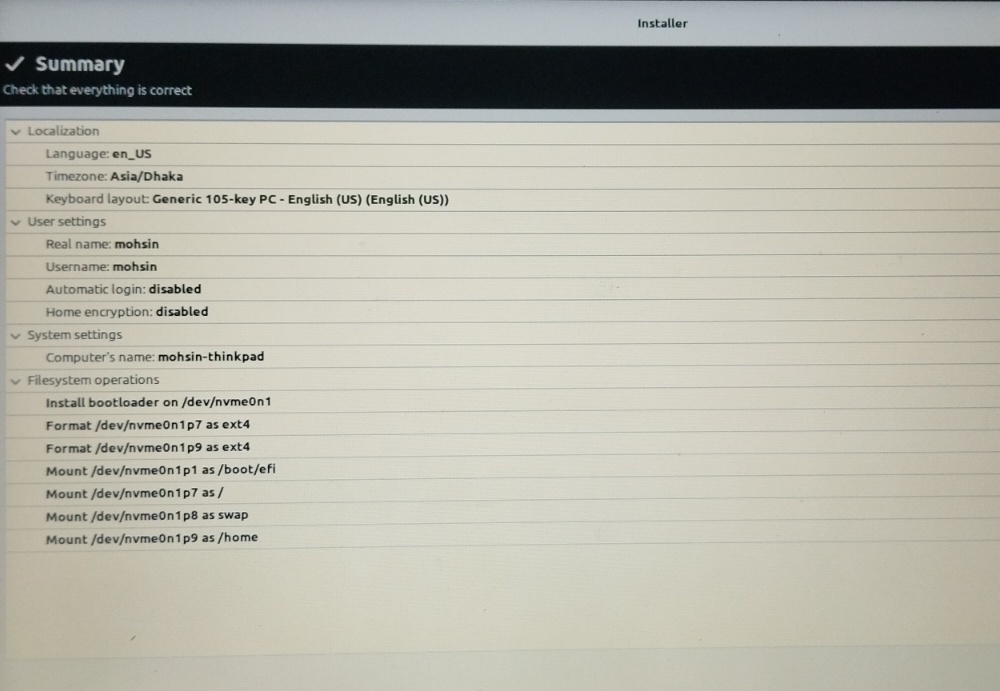
What a correct final summary looks like — bootloader on the disk, / formatted, EFI mounted unformatted, swap and /home reused:
Stage 4: Verify the Boot Menu
You should see a GRUB menu listing both LMDE and Windows on reboot. If something’s off:
Boots straight to Windows, no GRUB menu at all: Your UEFI boot order has Windows Boot Manager listed first. Go into BIOS/UEFI → Boot Order → move the Linux/GRUB entry above Windows Boot Manager.
GRUB shows, but no Windows entry in the list: This is the single most common dual-boot complaint — os-prober is disabled by default in modern GRUB for security reasons:
sudo nano /etc/default/grubAdd or uncomment:
GRUB_DISABLE_OS_PROBER=falseIf that doesn’t take effect, check /etc/default/grub.d/*.cfg for any file that overrides GRUB_DISABLE_OS_PROBER and set it to false there too. Then:
sudo update-grubIt should print “Found Windows Boot Manager on…” — reboot to confirm it now appears.
GRUB shows Windows but selecting it throws an “invalid EFI file path” error:
Usually means the bootloader was installed to a partition instead of the disk in Stage 3 step 5. Re-run sudo update-grub, and if that doesn’t resolve it, you may need to reinstall grub-efi targeting the disk explicitly.
Secure Boot blocks LMDE from booting at all: Enroll the MOK (Machine Owner Key) when prompted on first boot. If it loops or fails, temporarily disable Secure Boot in BIOS.
One rule from here on: always boot the two OSes through GRUB. Adding dual-boot entries directly in the UEFI firmware setup gets overwritten — GRUB owns the boot menu once LMDE is installed.
Stage 5: Mount the Shared NTFS Partitions in LMDE
Windows already sees WORK (D:) and PERSONAL (E:) natively — nothing to do there. In LMDE, NTFS partitions won’t auto-mount with the right permissions by default.
- Find the UUIDs of your two partitions:
sudo blkid - Create mount points:
sudo mkdir -p /media/work /media/personal - Edit fstab:
Add (replace the UUIDs with your actual ones from step 1):sudo nano /etc/fstabUUID=xxxx-work-uuid /media/work ntfs-3g defaults,uid=1000,gid=1000,umask=022,nofail 0 0 UUID=xxxx-personal-uuid /media/personal ntfs-3g defaults,uid=1000,gid=1000,umask=022,nofail 0 0uid=1000,gid=1000makes you the owner (1000 is your first user account — confirm withidif unsure).umask=022gives you full read/write, others read-only.nofailprevents LMDE from hanging at boot if a partition is ever briefly inaccessible.
- Test without rebooting:
sudo mount -a - If you can read/write to
/media/workand/media/personalas your normal user now, you’re done — they’ll auto-mount on every boot.
Don’t write to these partitions from Linux while Windows is in a hibernated/Fast-Startup state — you already disabled both in Stage 2.
Stage 6: Post-Install Hardening
LMDE — zram + swap partition setup (makes the system snappy under memory pressure):
sudo apt install zram-tools
sudo nano /etc/default/zramswap
Set:
ALGO=zstd
PERCENT=50
PERCENT=50 means zram claims up to 50% of your RAM as compressed, in-memory swap — e.g., 8GB of zram on a 16GB machine. If your RAM differs from 16GB, you can raise PERCENT to 75—100 on machines with less RAM for more headroom. Then tune the kernel:
sudo nano /etc/sysctl.d/99-zram.confAdd:
vm.swappiness=180
vm.watermark_boost_factor=0
vm.watermark_scale_factor=125
vm.page-cluster=0
vm.page-cluster=0 disables swap clustering — important for zram because zram handles single 4KB pages efficiently, while clustering (default 3) only helps slow disk swap by batching I/O.
Apply and verify:
sudo sysctl --system
sudo systemctl restart zramswap
cat /proc/swaps
You should see both /dev/zram0 (high priority) and your 4GB disk swap partition (lower priority) listed — zram absorbs almost all swap activity day-to-day, the disk partition only kicks in if zram itself fills up. Don’t enable zswap alongside this — it’s redundant with zram and actively counterproductive if both run at once.
Hibernation caveat: hibernation does not work through zram, even with this setup. If you want hibernate-to-disk support, that requires the disk swap partition to be sized to match your full RAM.
LMDE — Timeshift baseline:
Timeshift is pre-installed on LMDE Cinnamon. Open it from the menu (System → Timeshift), configure your snapshot schedule, and take a baseline snapshot once the system feels stable.
sudo apt update && sudo apt upgradeTRIM on the SSD: LMDE handles this automatically via the fstrim.timer systemd service (enabled by default). Worth a one-time check:
systemctl status fstrim.timerNote: TRIM only applies to your Linux partitions (the ext4 ones). Your NTFS partitions don’t need TRIM — NTFS uses its own optimization through Windows’ scheduled Optimize Drives task.
ReviOS post-install pass: follow ReviOS’s own Post-Install guide (NVCleanstall/NVSlimmer for driver cleanup, DirectX, etc.) for the final performance tuning once you’ve confirmed the dual-boot itself is solid. On the Revision Tool path, re-open the tool occasionally — playbook updates ship independently of Windows and can be reapplied non-destructively.
Windows-side update policy on this setup: automatic updates are disabled (services stopped via the Revision Tool), so schedule a monthly manual pass — winget upgrade --all for apps plus an occasional Settings → Windows Update scan for OS servicing. The software inventory guide documents the full routine.
Uninstalling Linux or Switching Distros
Know your exit strategy before you need it. Both operations start from Windows. And if “switching distros” eventually becomes “leaving Windows behind entirely,” the companion Windows to Linux Guide covers the full transition — migration, package management, and daily-driver Linux workflows.
Full removal: back to single-boot Windows
Phase 1 — delete the Linux partitions:
- In Windows, right-click Start → Disk Management.
- The Linux partitions show up as nameless “Healthy (Primary Partition)” entries (Windows can’t read ext4/swap). Right-click each → Delete Volume → they merge into one unallocated block.
- Right-click C: → Extend Volume → finish the wizard to reclaim the space.
Phase 2 — erase GRUB from the EFI partition. Skip this and you’ll boot into a grub rescue> prompt, because the EFI partition still points at the bootloader you just deleted:
- Open Command Prompt as administrator → run
diskpart. list disk→sel disk 0(your main drive) →list vol.- Find the small FAT32 volume labeled System (the ~300 MB EFI partition) →
sel vol X→assign letter=Z→exit. - Back in the command prompt:
Z: cd EFI dir - Delete only the Linux folder (named
debian,linuxmint, or similar):
Never deletermdir /s /q debianEFI\MicrosoftorEFI\Boot— Windows will not boot without them. - Reboot. The temporary
Z:letter disappears on its own, the EFI partition goes back to being hidden, and the machine boots straight to Windows. Optionally confirm in BIOS that Windows Boot Manager is the only boot entry.
Switching LMDE for another Linux distro (keeping /home)
Because your files live on the separate /home partition, you can replace the OS without touching personal data:
- Boot the new distro’s USB and choose manual partitioning (“Something Else” / custom) — never the automatic options.
- Reassign the existing partitions:
- Root (
/dev/nvme0n1p7here): format (ext4 or the distro’s default), mount/— this is the step that actually deletes LMDE. - Home (
/dev/nvme0n1p9): do not format, mount/home. - Swap (
/dev/nvme0n1p8): set use as swap. - EFI (
/dev/nvme0n1p1): do not format, mount/boot/efi.
- Root (
- Point the bootloader at the whole disk (
/dev/nvme0n1), install, reboot into the new GRUB.
The new installer adds its own folder (e.g. EFI/ubuntu/) alongside the old one and updates the boot order in NVRAM — it won’t delete the old LMDE folder, which is harmless (a few MB). To tidy up later, delete the ghost folder from the new system’s /boot/efi/EFI/ directory, or from Windows using the diskpart steps above.
Quick Checklist
- Ventoy updated to 1.1.14+ before first use (latest: 1.1.17)
- Full backup taken, AC power connected throughout
- BIOS confirmed UEFI + GPT
- ReviOS ISO built via AME Wizard (ISO Injection)
- Windows + ReviOS installed onto 160GB partition, rest left unallocated
- Windows updated, stable, drivers confirmed working
- Fast Startup disabled, hibernation disabled (
powercfg /hibernate off), BitLocker confirmed off - WORK (100GB NTFS) and PERSONAL (80GB NTFS) partitions created in Disk Management
- Actual drive letters noted (D:, E:, or whatever Windows assigned)
- ~158GB left unallocated for Linux
- LMDE installed via “Something Else,”
/, swap (4GB), and/homemount points/types set manually - Bootloader installed to the disk (not a partition)
- GRUB menu shows both OSes on reboot (os-prober fix applied if needed)
- WORK/PERSONAL partitions mounted read-write in LMDE via fstab
- Dropbox/Mega folders relocated to WORK or PERSONAL via each app’s official Move feature
- zram-tools installed and configured (PERCENT=50, zstd), sysctl tuning applied,
/proc/swapsshows both - MEGAsync installed via official repo, logged in, syncing confirmed against Windows/phone
- Dropbox installed (nemo-dropbox + dropboxd), logged in, Selective Sync folders chosen
- KDE Connect installed and paired with phone
- Timeshift baseline snapshot taken in LMDE
- TRIM confirmed active on Linux partitions
Official References
- ReviOS Official Site — Debloated Windows 11 build
- Revision Tool (GitHub) — Apply ReviOS to an existing stock install; the post-install path used on this machine
- AME Wizard + Playbook downloads — ISO injection tool and current playbook
- Linux Mint Download (LMDE) — LMDE ISOs and SHA256 checksums
- Ventoy GitHub Releases — Latest stable release (1.1.17)
- Ventoy Secure Boot Documentation — UEFI CA 2023 / new key enrollment
- Ubuntu manpage: ntfs-3g — ntfs-3g mount options
- GRUB manual — os-prober section explains why it is disabled by default
- systemd-zram Documentation — zram kernel documentation
- PEP 668 — Marking Python environments as externally managed — Why uv instead of pip on Debian 12
- uv Official Site — Modern Python package manager
Related Guides
- Debloated Windows: Tiny 11 vs Atlas OS vs ReviOS — Alternative debloated Windows options
- Power User Software Inventory — Install essential Windows tools via winget
- Stata + VS Code Workflow on Windows — Development setup that works on ReviOS too
- Windows to Linux Guide (companion site) - 52+ guides for the Linux side of these workflows and the full transition